You can download this article as a PDF document using the link below.
PDF document about The Welcome screen
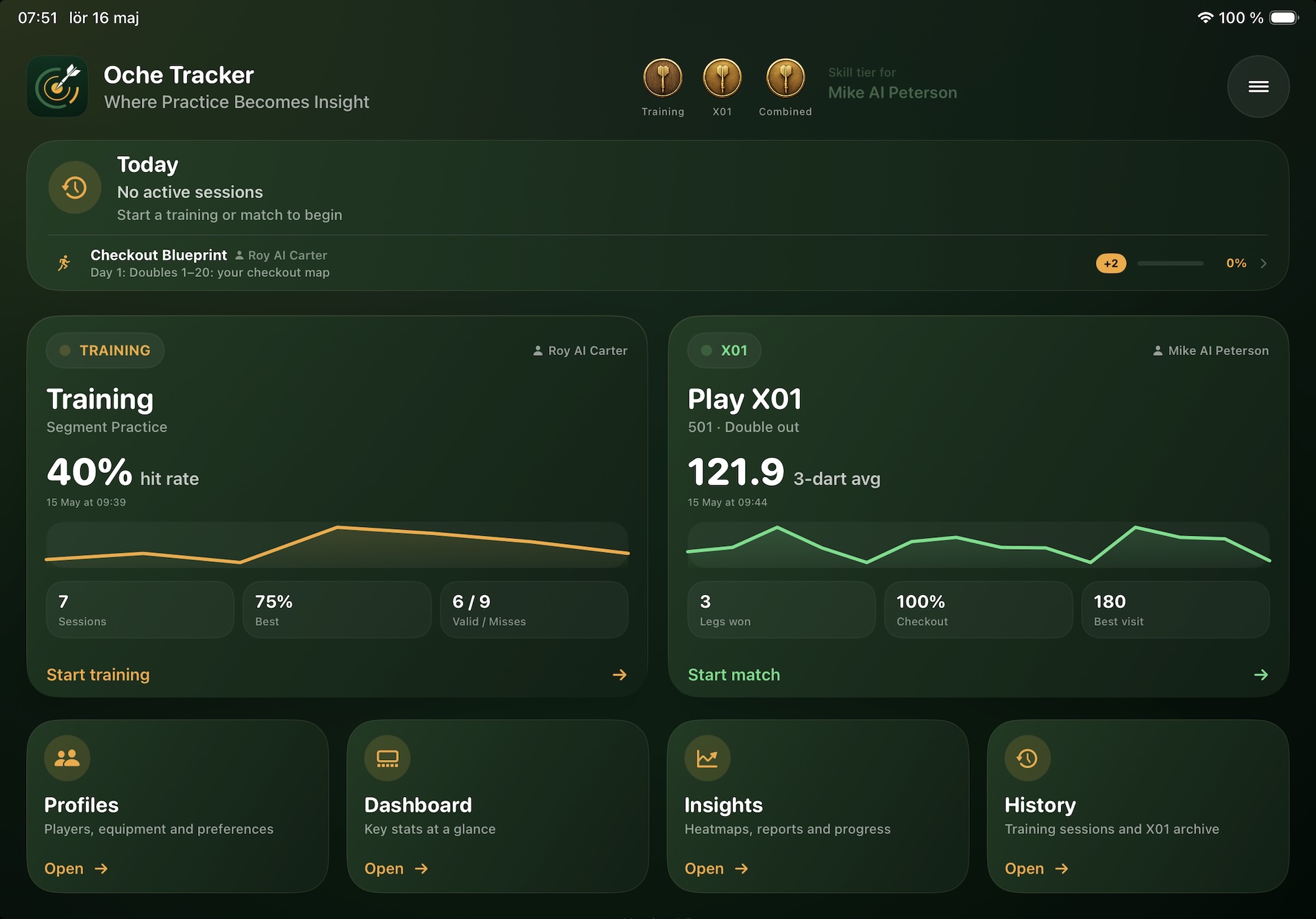
The Welcome screen is your home base. Open the app and you land here every time. The screen is split into a header strip, a Today card across the top, two big hero cards for Training and X01, and a row of four shortcut cards along the bottom.
This article walks through each panel so you know exactly what tapping anywhere takes you to.
Top header
The strip across the top contains four things, left to right:
App identity Target icon, ”Oche Tracker” name and the tagline ”Where Practice Becomes Insight”. Purely decorative — there’s nothing to tap.
Tier badges Three small medal icons labelled Training, X01 and Combined. Each shows your current weekly tier (Wood → Iron → Bronze → Silver → Gold → Diamond → Platinum) for the activity ranking. Tap any of them to open Activity Ranking, where you can step through past weeks / months / years and see how your activity has trended.
Menu button The hamburger icon on the far right. Opens the Menu sheet with shortcuts to Quick Starts, Training Plans, Grouping Analysis, Segment Rating, Insights, Reports, Backup, Settings and the rest. The ? icon at the top of that menu opens this Help & Support hub.
⚠️ If you don’t see the tier badges, you haven’t created a player yet — set one up in Profiles and they appear automatically.
Today card
Right under the header sits a wide gold-accented card. The clock icon and ”Today” title anchor the left side. The body content depends on what’s happening:
- If you have an active (resumable) session — ”Active training” or ”Active X01” with the session label and detail — and a gold ”Resume” button on the right.
- Otherwise — ”No active sessions / Start a training or match to begin” as a quiet placeholder.
If you’re enrolled in an active Training Plan, a thin strip appears below the main content showing the plan name, the player it belongs to, the current day’s title, a small progress bar with percentage, and a ”+N” badge if you have multiple active enrolments. Tap the strip to jump straight into the plan.
Trial reminder banner (when shown)
Once a day during a trial period, a gold-tinted reminder banner appears below the header — ”Oche Tracker Pro — X days left”, the expired equivalent, or a ”Try Pro free for 7 days” prompt before you’ve started. Tap it to open the Pro screen. The banner shows once per calendar day so it never feels nagging.
Training hero card (left)
The big card on the left of the hero row is gold-accented and represents your training journey. Reading it top-to-bottom:
Header pill + player name ”TRAINING” pill in gold, paired with the player whose stats are shown on the right. The card auto-picks the best-performing participant from your most recent session, so you’ll usually see your own name.
Title and subtitle ”Training” headline, with the most recent mode underneath (e.g. ”Segment Practice”).
Primary value Big number — your hit rate from the most recent session — followed by the timestamp.
Spark line A thin gold line plotting recent hit rates so you can see the trend at a glance.
Three stats pills Sessions, Best (best session hit rate) and Valid / Misses (count of evaluated throws vs board misses).
Start training The gold link at the bottom takes you straight into the Training session setup.
Tap anywhere on the card to start a new training session — the same as tapping ”Start training”.
X01 hero card (right)
The matching card on the right is green-accented for X01 play:
Header pill + player name ”TRAINING” pill in gold, paired with the player whose stats are shown on the right. The card auto-picks the best-performing participant from your most recent session, so you’ll usually see your own name.
Title and subtitle ”Training” headline, with the most recent mode underneath (e.g. ”Segment Practice”).
Primary value Big number — your hit rate from the most recent session — followed by the timestamp.
Spark line A thin gold line plotting recent hit rates so you can see the trend at a glance.
Three stats pills Sessions, Best (best session hit rate) and Valid / Misses (count of evaluated throws vs board misses).
Start training The gold link at the bottom takes you straight into the Training session setup.
Tap anywhere on the card to start a new training session — the same as tapping ”Start training”.
A note on Checkout % here vs on the Dashboard
Welcome’s Checkout % is computed per leg — ”how often did you close the leg when you had the chance?”. A leg counts as a chance whenever any of your visits in that leg started at 170 or below; a leg counts as a successful checkout when one of your visits closed it. So six legs closed out of ten where you had a finish opportunity reads as 60%.
The Dashboard uses a different, per-visit definition aligned with PDC stat conventions: successful checkouts ÷ visits with a starting score ≤170. The same data can therefore read differently across the two views (e.g. 60% on Welcome, 38.5% on Dashboard for the same set of legs). Both numbers are mathematically correct — they answer different questions:
- Welcome (per leg): ”How often do I close a leg when I get the chance?” — the intuitive reading for a player at the oche.
- Dashboard (per visit): ”How often does a finish-eligible visit produce a checkout?” — the standard aggregated statistic used in pro darts.
⚠️ If the two numbers disagree, neither is wrong — Welcome favours readability, Dashboard favours the convention you’ll see in broadcast graphics and PDC stat tables.
Bottom row — four shortcut cards
Across the bottom sit four equal-sized cards. Each opens a hub of related features:
Profiles Players, equipment and preferences. Create players, manage their dart sets, set their default preferences, and rearrange or archive profiles.
Dashboard Key stats at a glance — a single screen of high-level numbers across Training and X01.
Insights Heatmaps, reports and progress — the umbrella entry into Grouping Analysis, Segment Rating, Progress Timeline and the deeper analytical views.
History Training sessions and X01 archive — every completed session listed chronologically with detail views per row.
Empty states
If you’ve just installed the app or only ever played a single session, the hero cards show ”—” placeholders for stats they don’t have data for yet. The spark lines fall back to a flat reference line. As you complete sessions and matches, every panel fills in automatically — no manual setup needed.
Footer
A small ”Version 1.0” string at the very bottom of the screen. Useful when reporting an issue or comparing builds. The same version appears in About → Hero card.
How everything connects
The Welcome screen is essentially a launcher. None of the cards compute deep analytics — they all surface the most recent or most relevant data and forward you to the right detail view. Every number you see here exists in greater detail somewhere in the app:
Profiles → per-player preferences, dart sets and statistics.
Hit rate / 3-dart avg → Progress Timeline (track over time) or Reports (per-session breakdown).
Tier badges → Activity Ranking (full week / month / year breakdown).
Session list under History → individual training and X01 detail views.