You can download this article as a PDF document using the link below.
PDF document about the History Screen
Training and X01 tabs
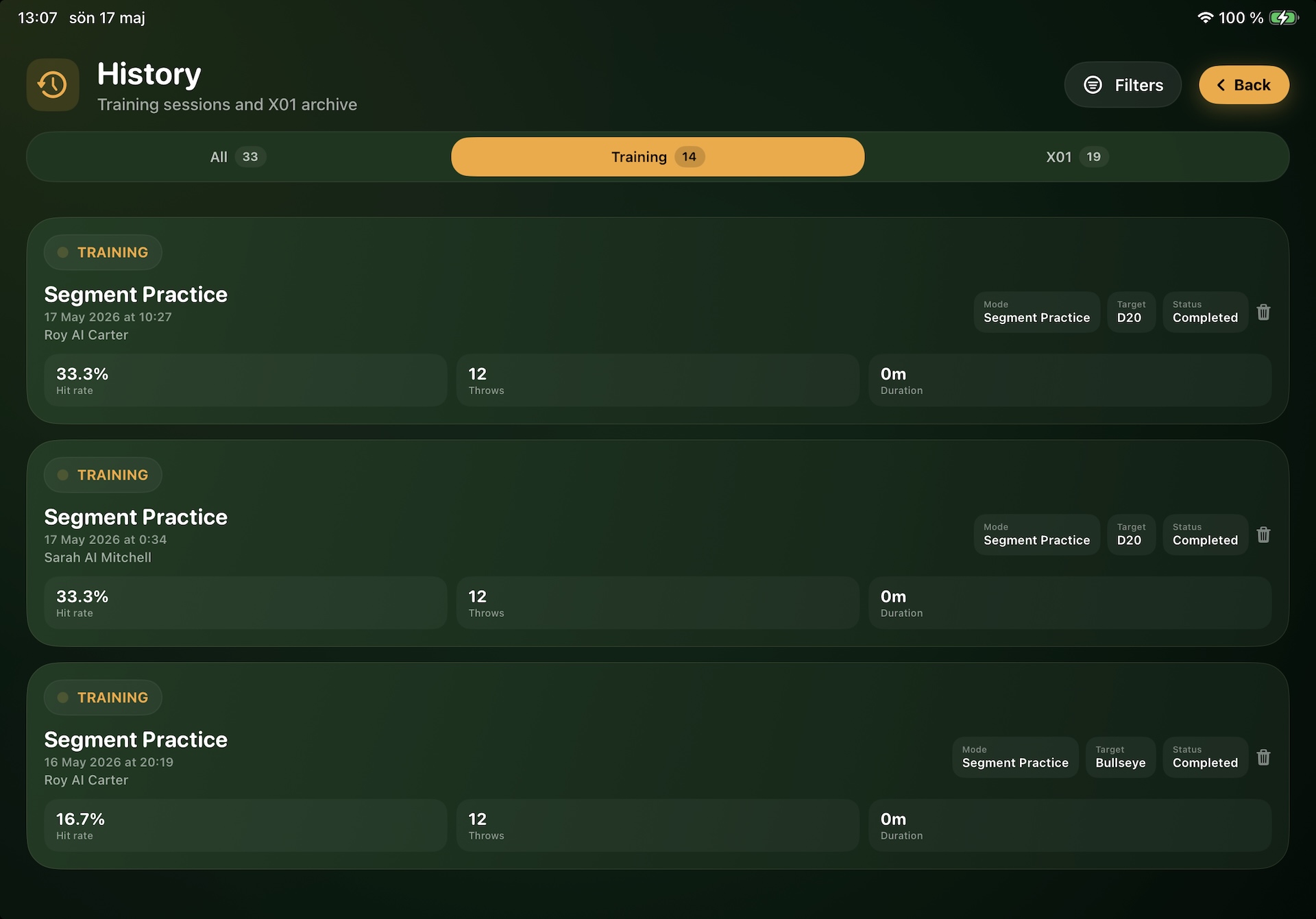
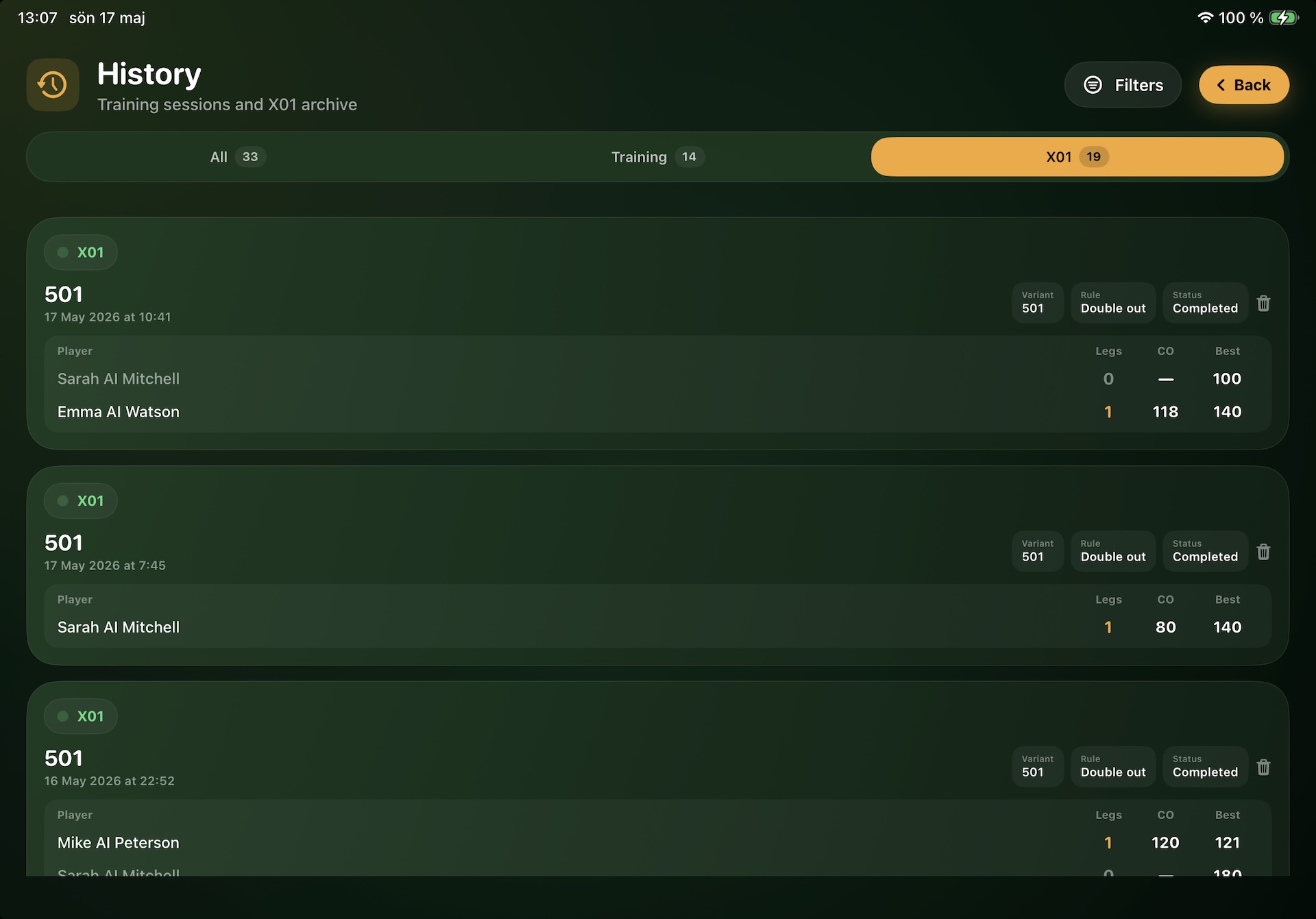
Every training session and X01 match you’ve ever played, listed and filterable — with full detail per row.
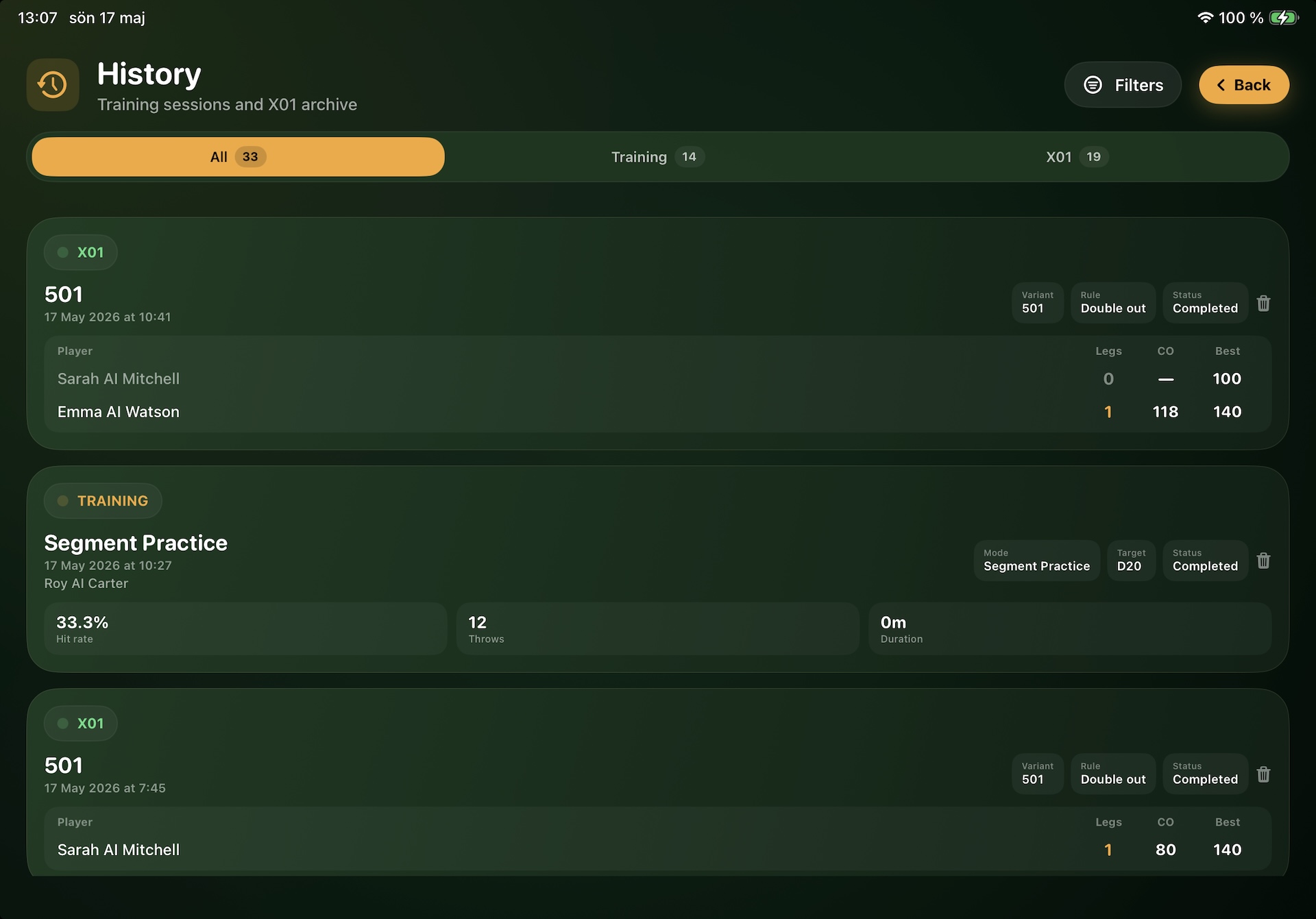
History is the chronological archive of everything the app has recorded for you. Open it from the Welcome screen by tapping the History card. Two tabs split the list — Training and X01 — and a rich filter panel narrows the rows to whatever subset you care about.
A segmented switcher near the top picks which list you’re looking at. Each row in the active list represents one completed (or abandoned) session / match. The two lists are completely separate — switching tabs is a clean reset of context, but your filter selections are preserved per tab.
List rows
Each row gives you a quick read on the session before you tap in:
- Headline — for Training, the mode name (e.g. ”Segment Practice — D20”); for X01, the variant and players (e.g. ”501 — Demogubben vs Testgubben”).
- Date and time — when the session started.
- Player chip — who was throwing (or all participants for multi-player sessions).
- Quick metrics — hit rate / 3-dart avg, and other key numbers depending on type.
- Status badge — Completed / Abandoned / Active where applicable.
Tap any row to open the full detail view for that session or match.
Filter panel · Common
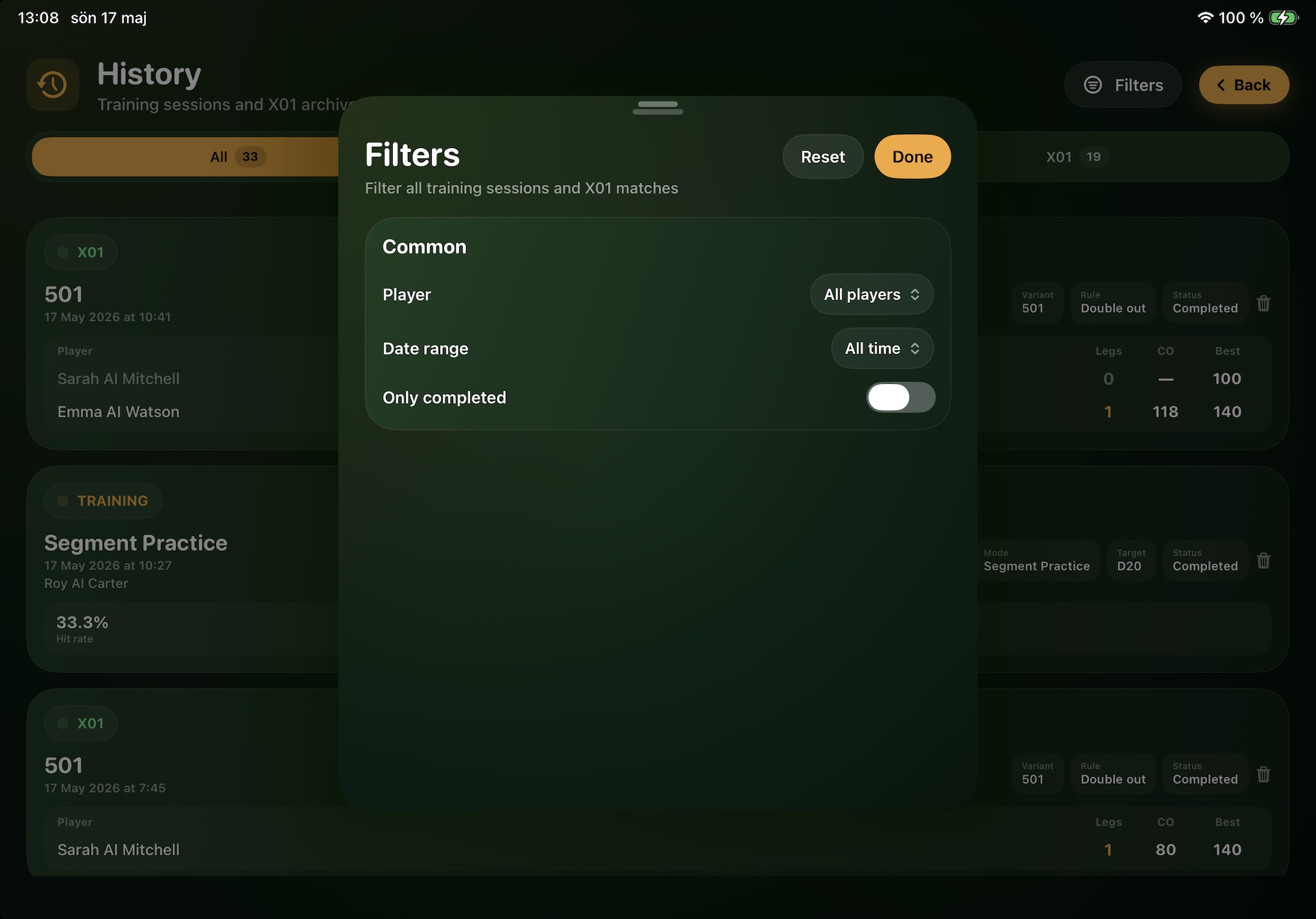
At the top of the filters sheet sit options that apply to both tabs:
Player
All players or one specific player. Matches / sessions where the player participated stay in the list.
Date range
All time, Today, Yesterday, Last 7 / 30 / 90 days, and similar windows. Same scale as the rest of the app.
Only completed
Toggle on to hide abandoned sessions and incomplete matches. Useful when you’re trying to read clean stats only.
Filter panel · Training
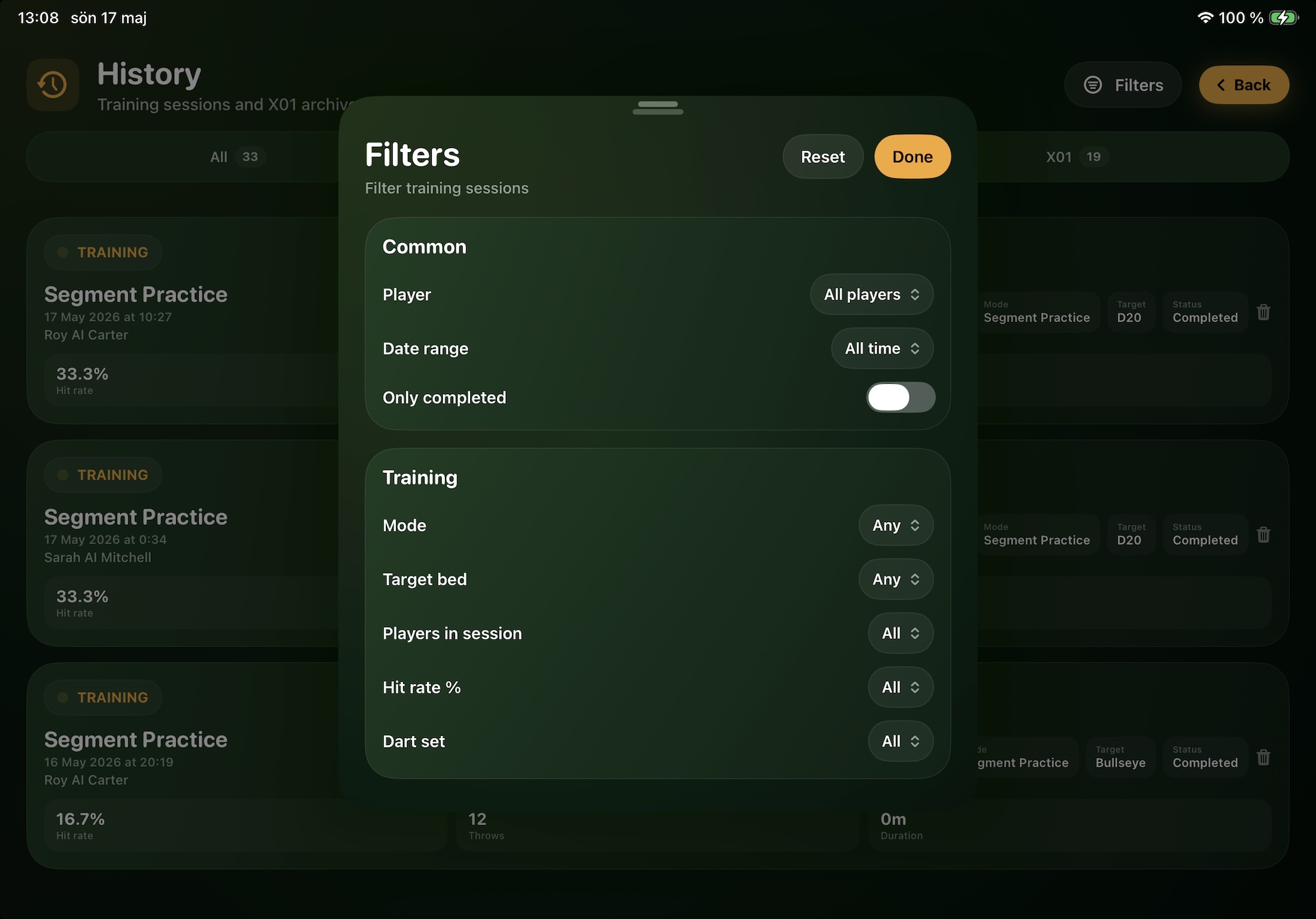
Tab-specific filters when Training is active:
Mode
Restrict to one training mode (Around the Clock, Segment Practice, Doubles, etc.) or any.
Target bed
Single, Double, Triple, Outer Bull or Bullseye.
Players in session
Solo / Multiplayer / Any. Useful when you only want to see practice you did alone.
Hit rate %
Bucket the list by hit rate ranges — handy for finding your best (or worst) sessions.
Dart set
All sets or one specific set you used.
Filter panel · X01
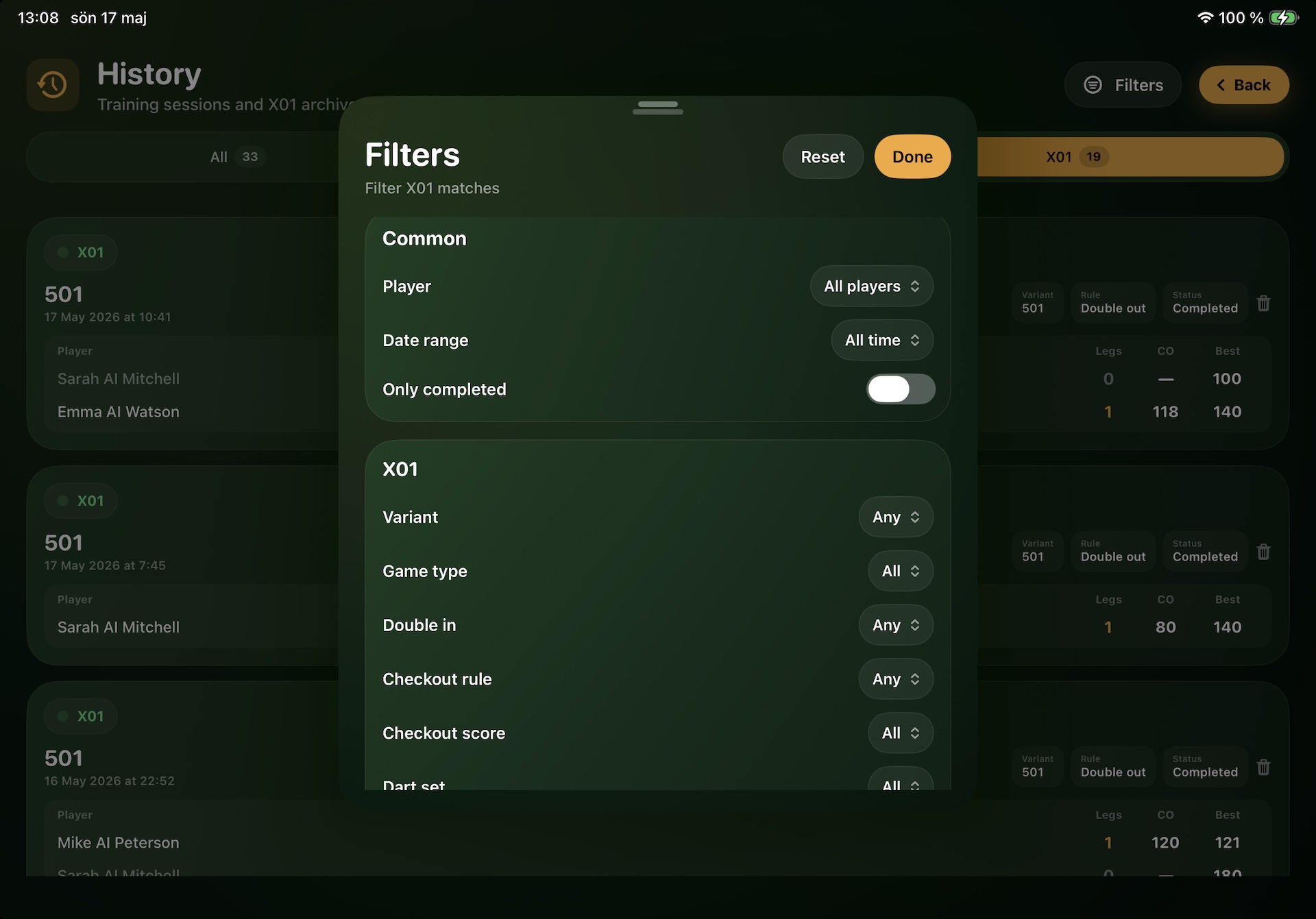
Tab-specific filters when X01 is active:
Variant
101 / 201 / 301 / 501 / 701 / 901 / 1001 — restrict to one starting score.
Game type
Solo / Multiplayer / Any. Same idea as the training-side filter.
Double in
Yes / No / Any.
Checkout rule
Straight out / Double out / Master out / Any.
Checkout score
Bucket by checkout total — find every leg you finished on, say, 100+ checkouts.
Dart set
All sets or one specific set.
Detail views
Tapping a row opens a full detail view tuned for the session type:
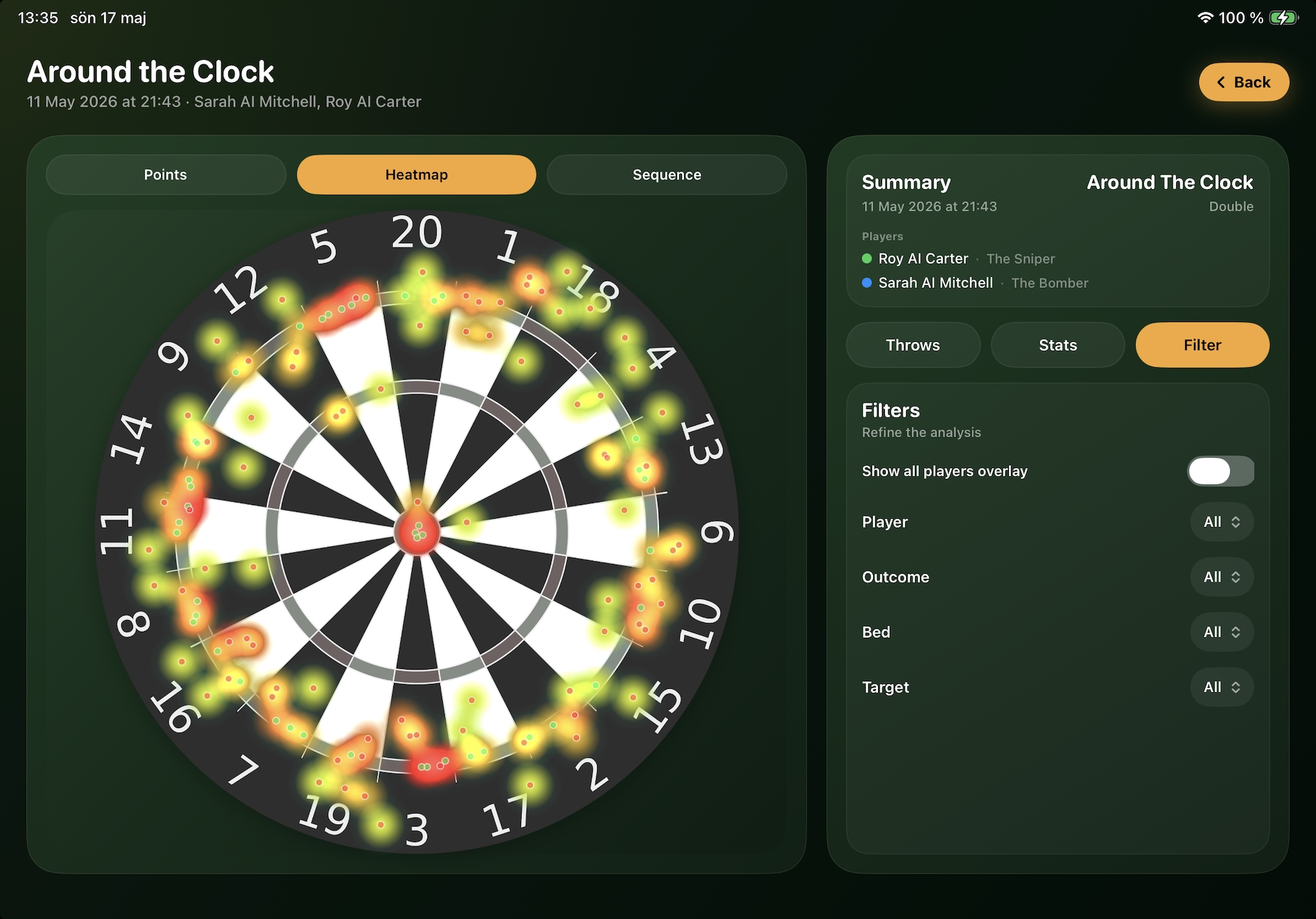
Training detail
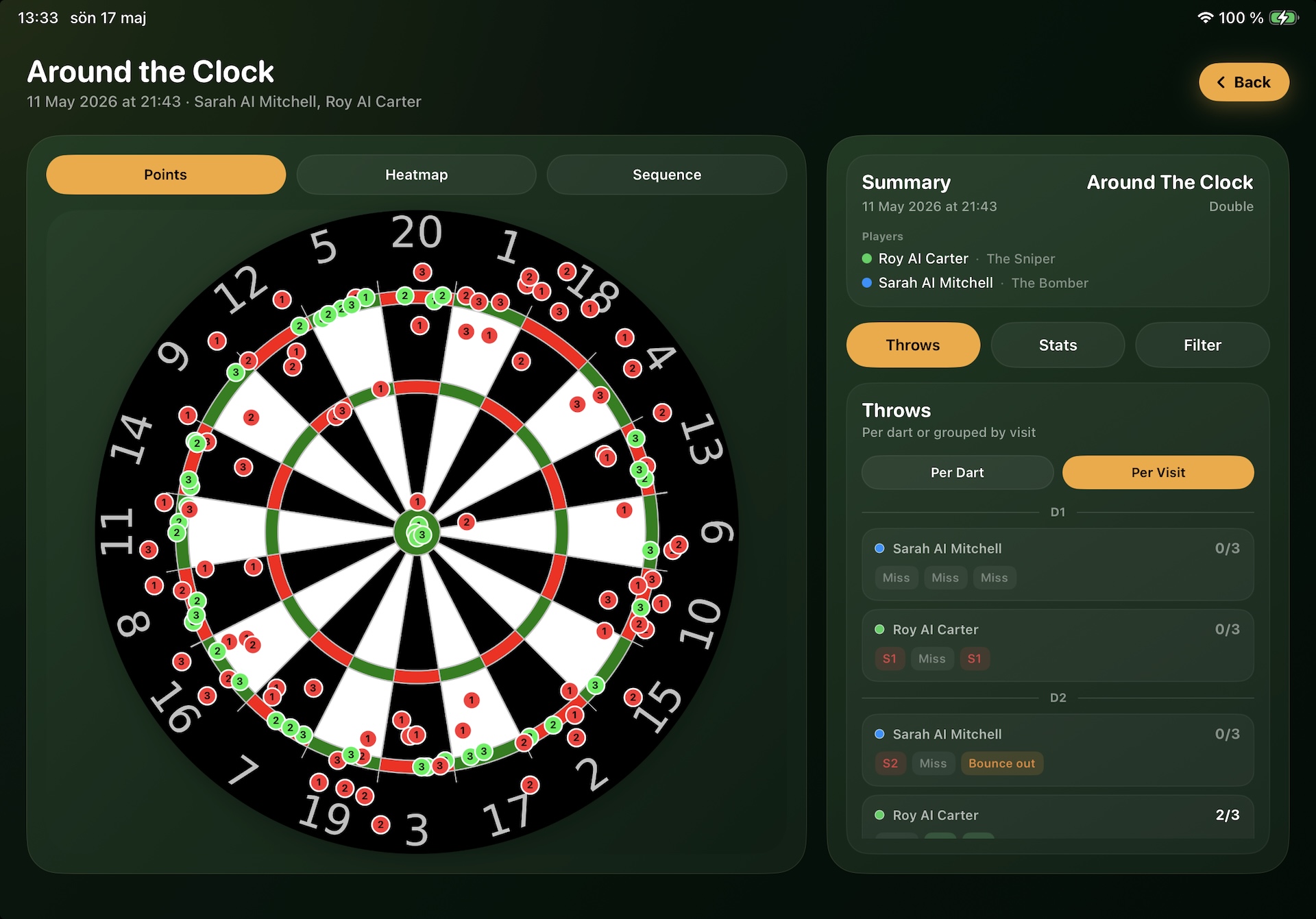
- Header with mode, target, date and primary stat.
- Per-target breakdown showing hit rate and attempts on each segment / bed.
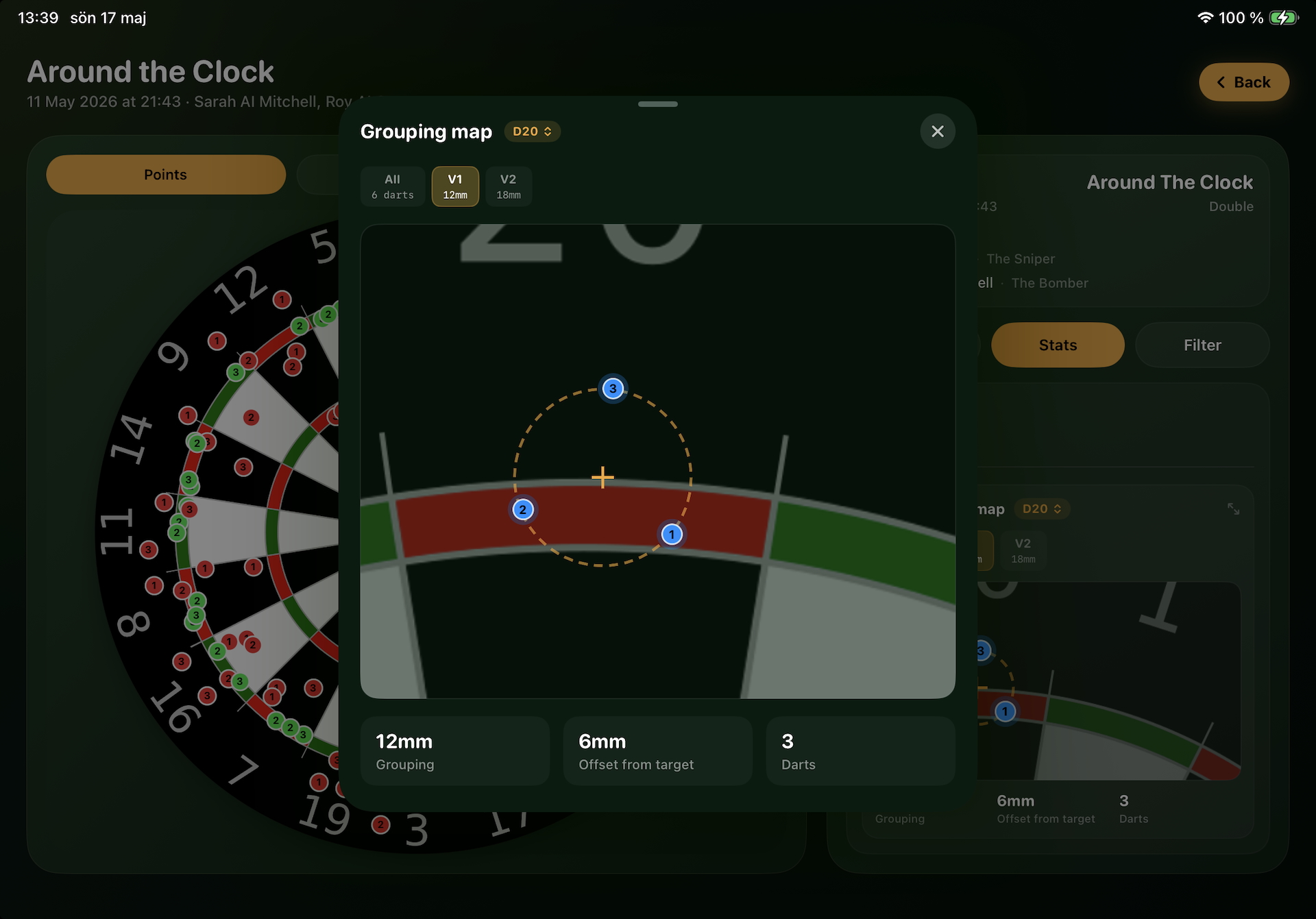
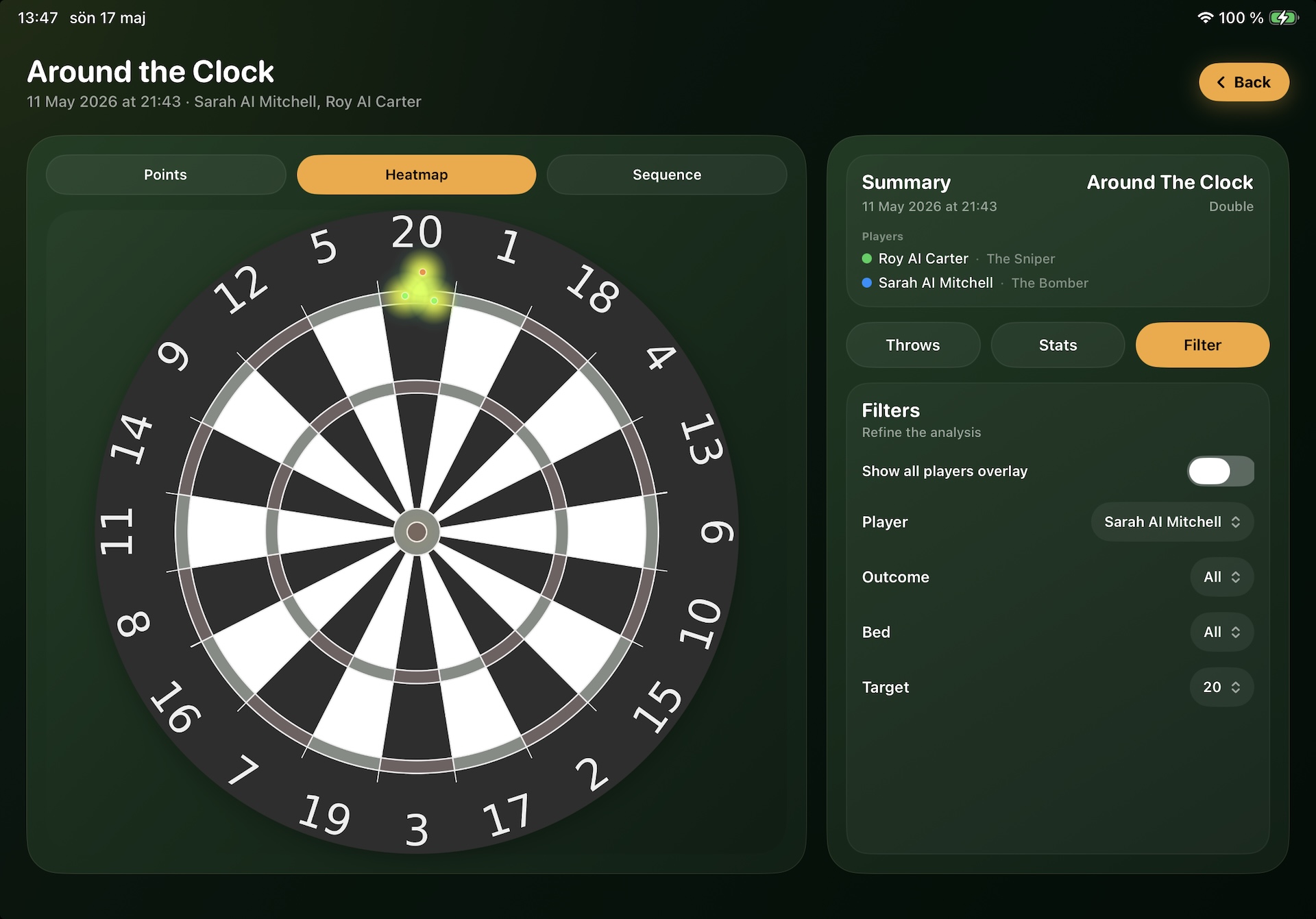
- Hit map / grouping visualisation when there’s enough position data.
- Visit-by-visit timeline showing every dart’s evaluation tag.
- Summary stats — total darts, hits, misses, board misses, bounce-outs.
X01 match detail
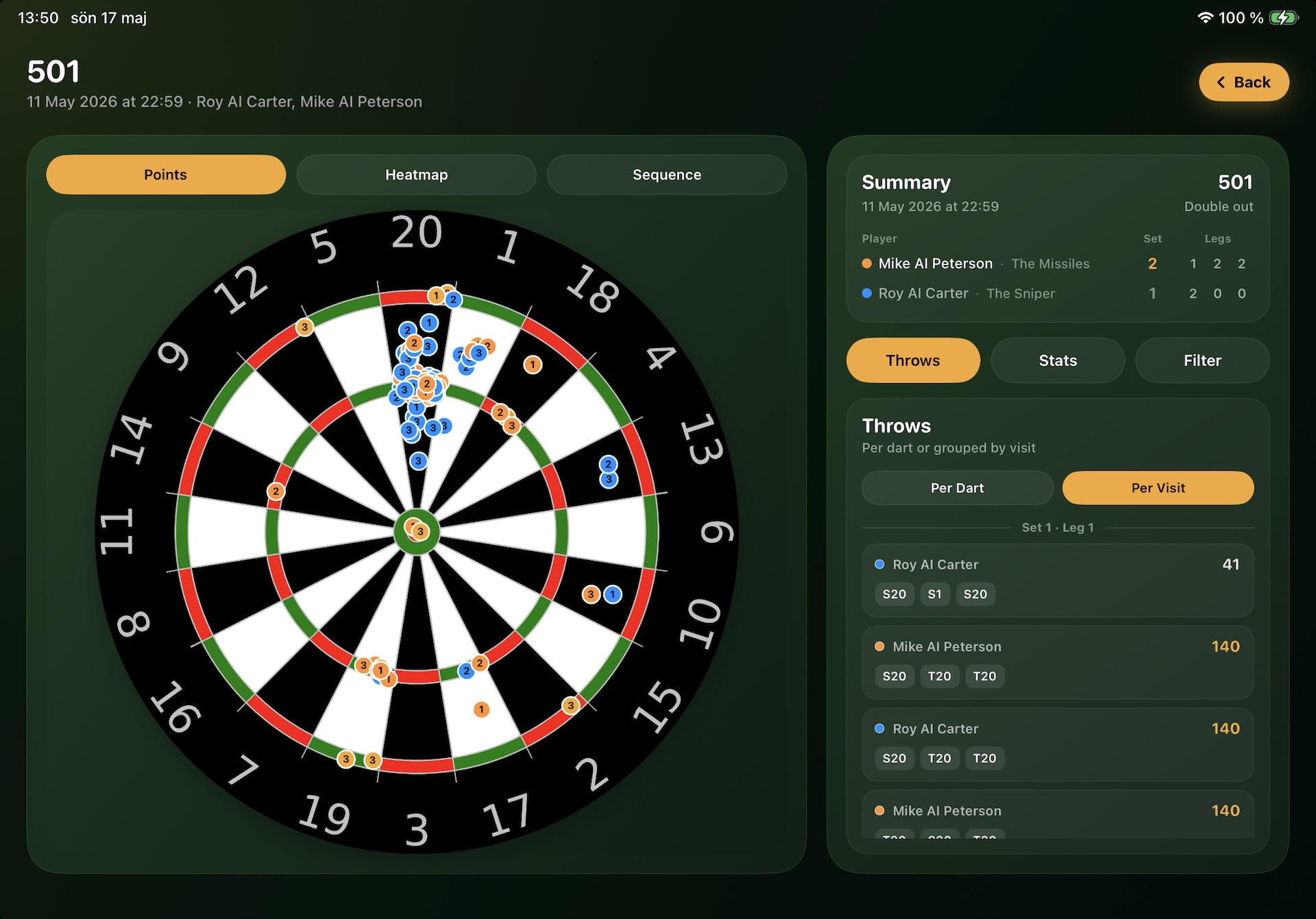
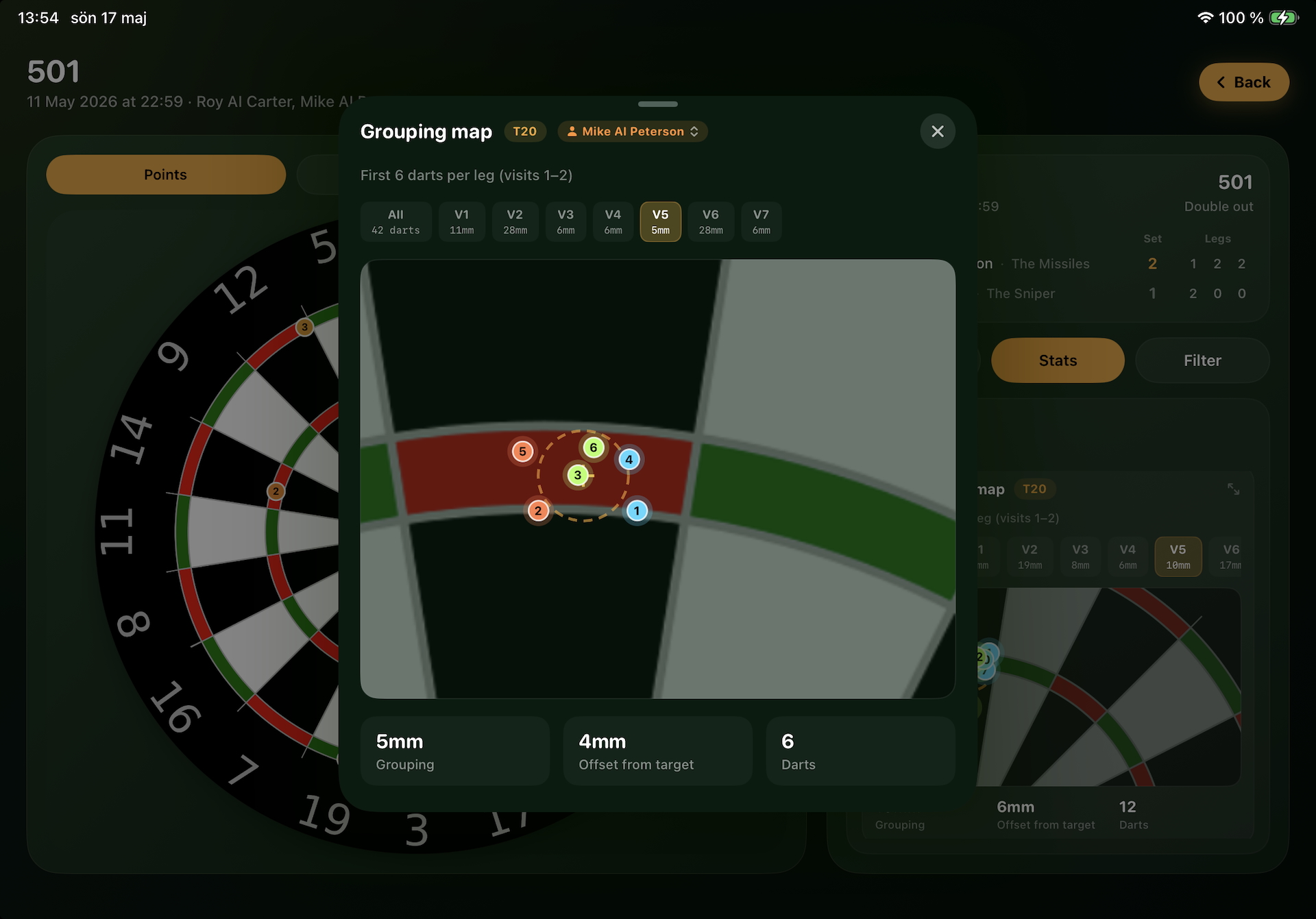
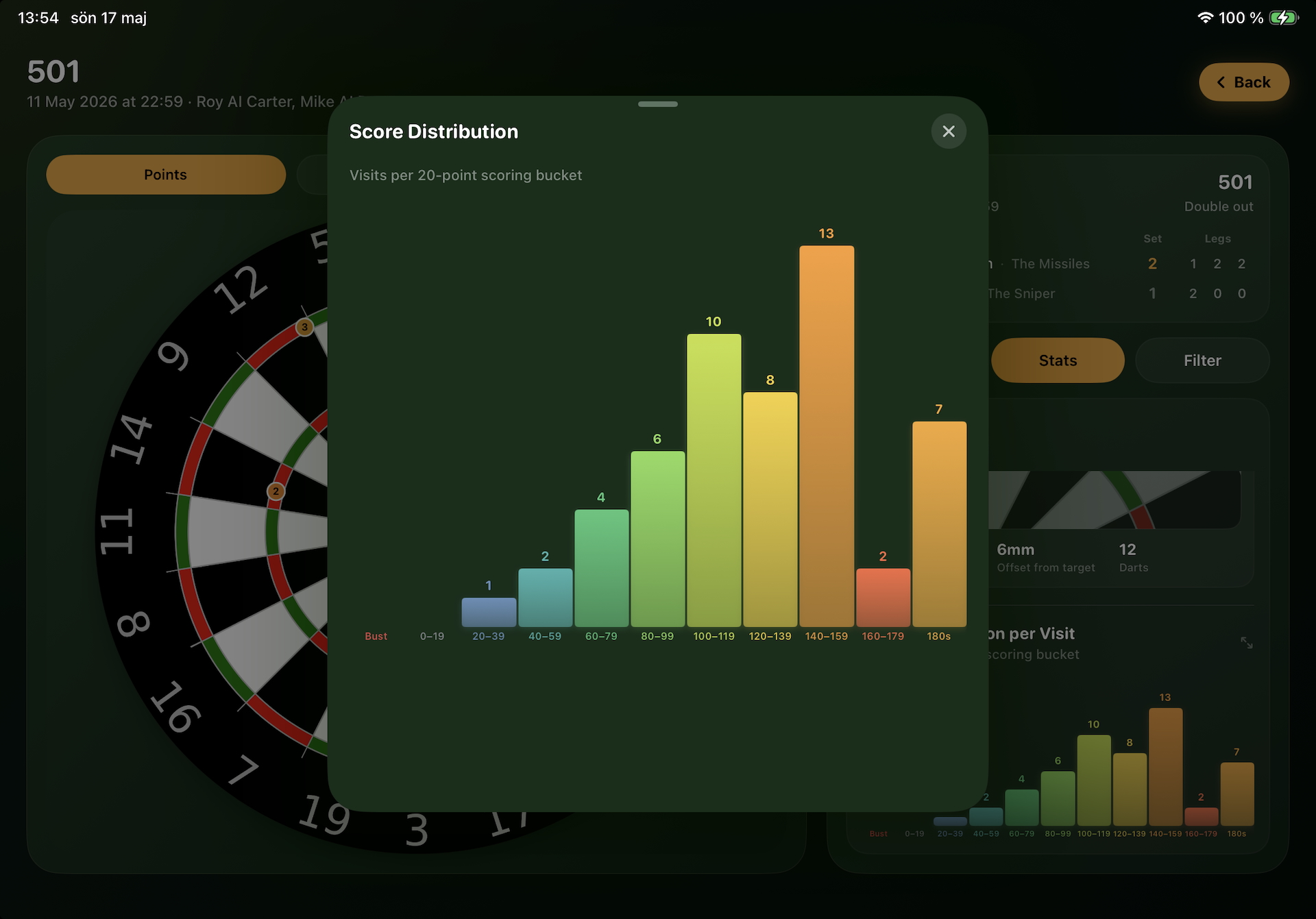
- Match header with variant, format and final score.
- Result row per player (WIN / LOSS / DRAW) with legs and sets won.
- Visit log showing every visit’s score, ending score and special markers (BUST / checkout).
- Score distribution chart per player.
- Average trend line across the match.
Resuming abandoned sessions
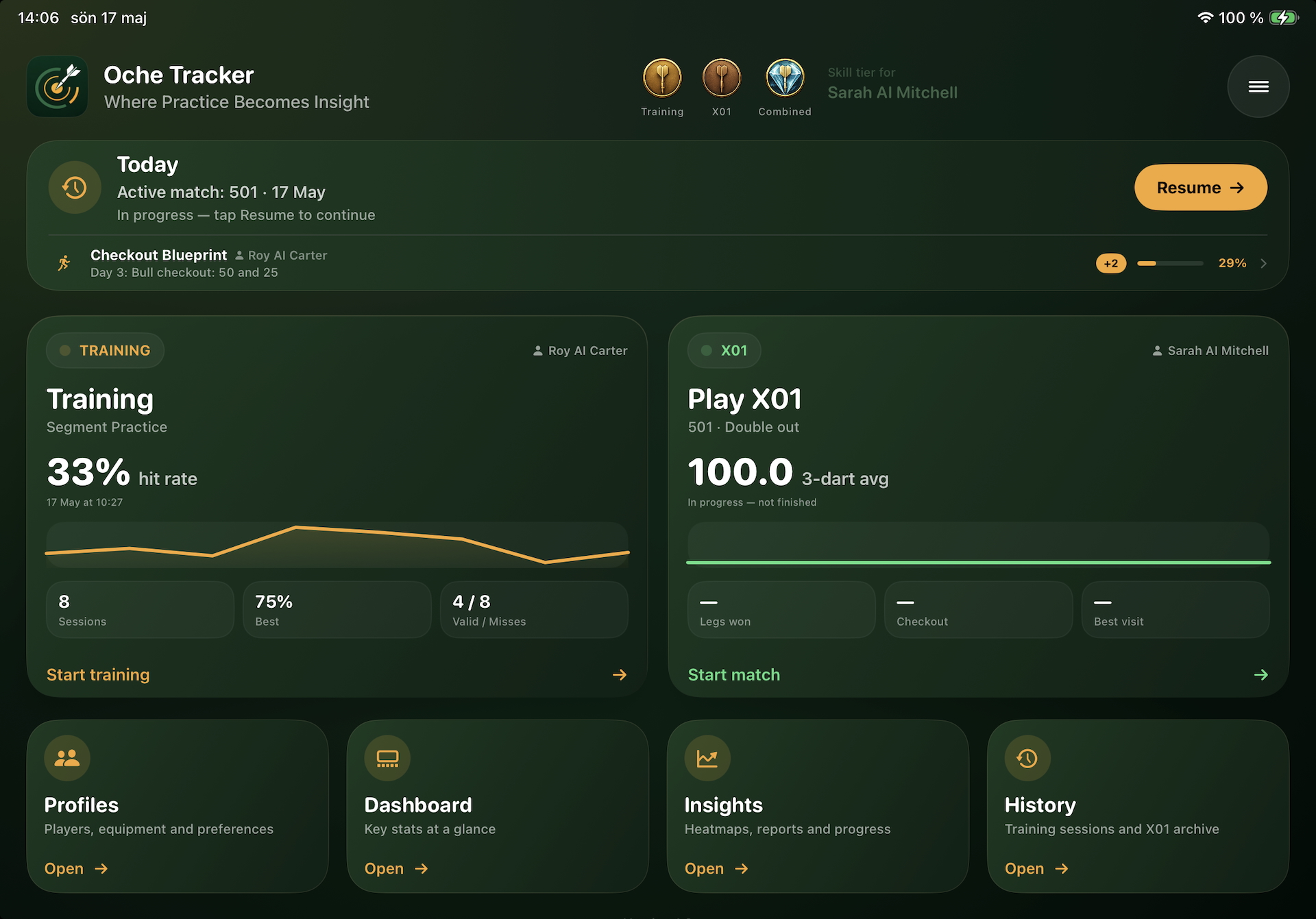
Sessions and matches you ended early (”abandoned”) still appear in History with a status badge. If they’re still resumable, the Today card on the Welcome screen also shows a Resume shortcut for the most recent one. Tapping the row in History opens the same detail view, but the Resume shortcut is faster when you actually want to keep playing.
Deleting and editing
History is intentionally a read-only archive of what actually happened. You can’t edit individual throws or change scores after the fact — keeping the data honest is important for the analytics views. Permanent removal is via the Backup → Restore flow on a fresh install, or via a full database wipe.
How filters interact with the rest of the app
Filters in History are local to this view — they don’t sync to Insights Hub, Dashboard, Reports or Activity Ranking. That’s deliberate: History’s filters are about ”find me a specific session”, whereas the analytical views’ filters are about ”summarise this slice of my data”.
Performance
Sessions and games are loaded from a single read transaction on open. Filtering happens entirely in memory after that, so you can flip filters around without hitting the database. With thousands of sessions the list still scrolls smoothly thanks to lazy rendering.