Players
Dart Sets
You can download this article as a PDF document using the link below.
PDF document about The Profiles screen
GETTING STARTED
Players, dart sets, per-player preferences and the archive — all in one place.
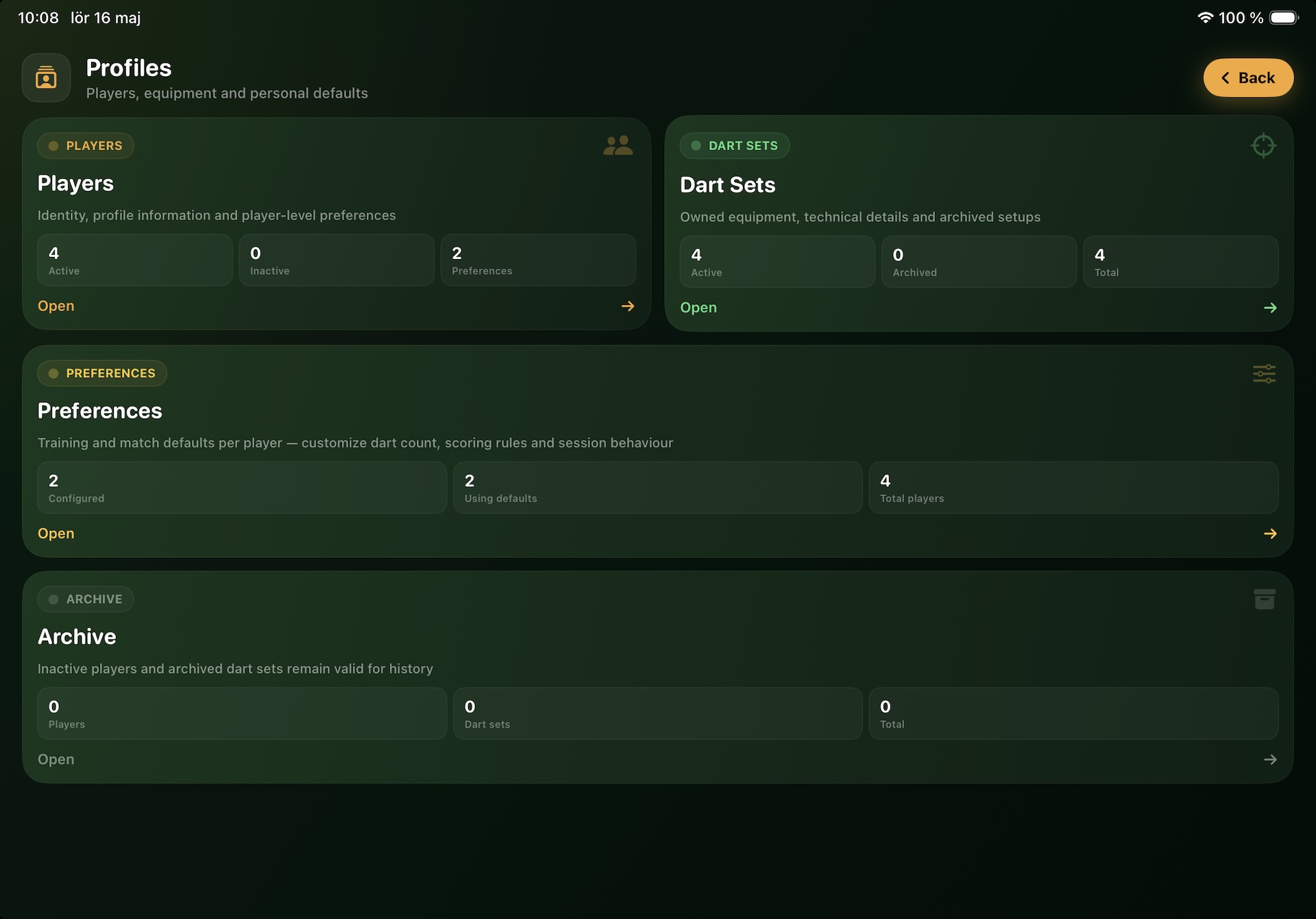
Profiles is the home for everything personal: who plays the app, what darts they throw, and how each player’s defaults are configured. Open it from the Welcome screen by tapping the Profiles card. The hub itself is a navigation page — four big cards each lead to a more detailed sub-screen.
The four cards
Players Manage player identities — name, nickname, photo, notes and the active / inactive state. Each card shows live counts: how many active players, how many inactive, and how many have customised preferences.
Dart Sets Manage your dart equipment — sets you throw with, their barrels, flights, weights and notes. Counts: active sets, archived sets, total.
Preferences Per-player defaults that get applied when starting a new session. Counts show how many players have customised settings vs how many are using the app’s defaults.
Archive Inactive players and archived dart sets. Anything in here still shows up in your history but won’t appear in session-setup pickers — a tidy way to retire equipment or family members who no longer play.
Players sub-screen
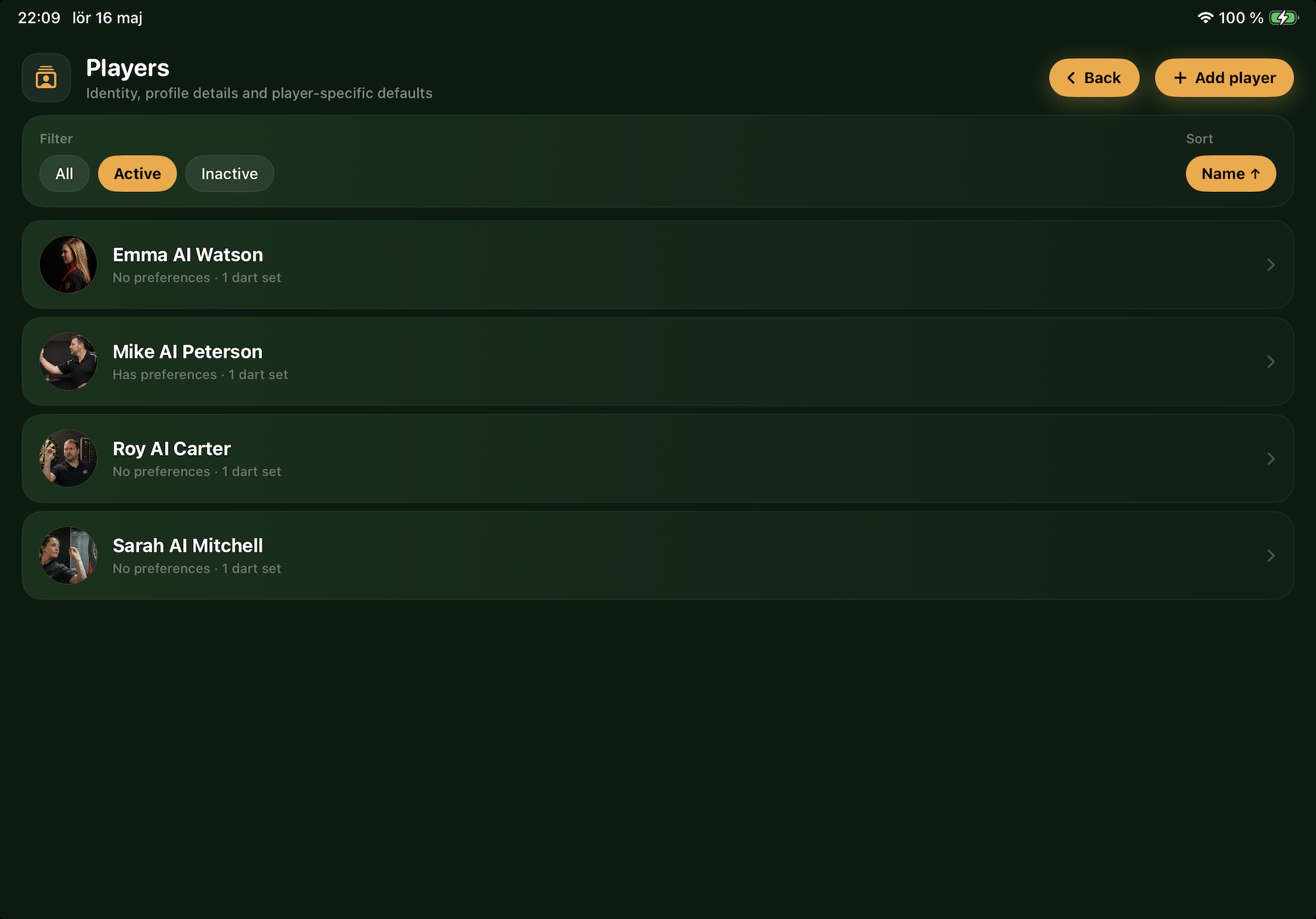
Tap the Players card to see every player you’ve created. Each row shows the name and nickname plus a quick summary. Buttons on the page:
- Tap any row to edit the player.
- Plus button (top-right of the list) creates a brand-new player.
- Long-press / context menu options include archive (move to inactive), restore (bring back from archive), and delete (only when the player has no associated history).
Player editor
The player form has a few simple sections:
Photo Optional — tap the avatar to pick from your photo library, or remove the current image.
Name Required. Used everywhere the player is referenced.
Nickname (optional) Shows next to the name on the Welcome hero cards (e.g. ”Nicklas Bågvinge / The Fisherman”). Pure flavour.
Active player Only shown when editing an existing player. On = appears in session-setup pickers and stats. Off = hidden from new sessions but the player’s history is kept intact. Toggling someone off doesn’t delete a single recorded throw.
Notes Free-form text — coaching reminders, equipment quirks, anything you want to remember about this player.
Dart Sets sub-screen
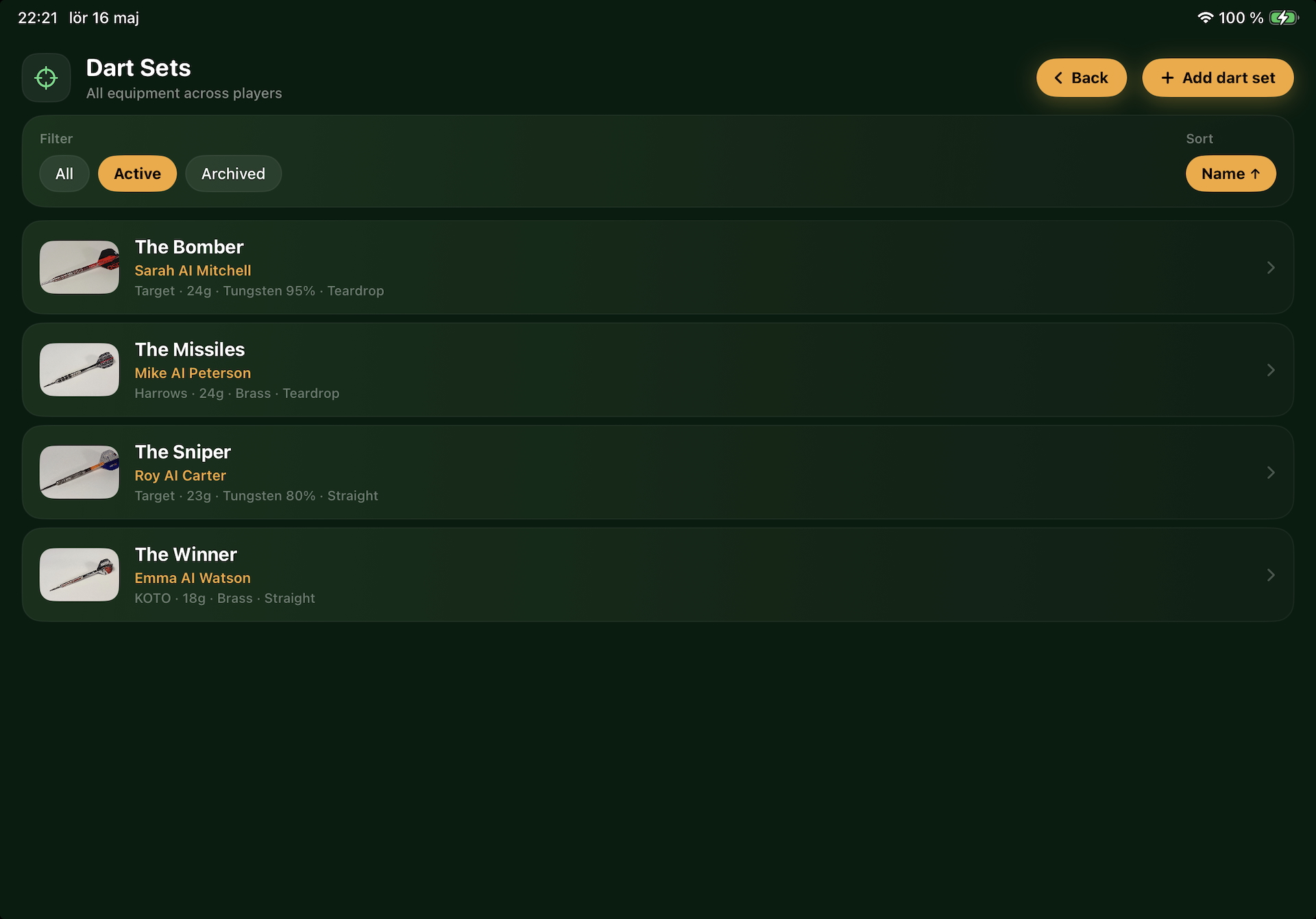
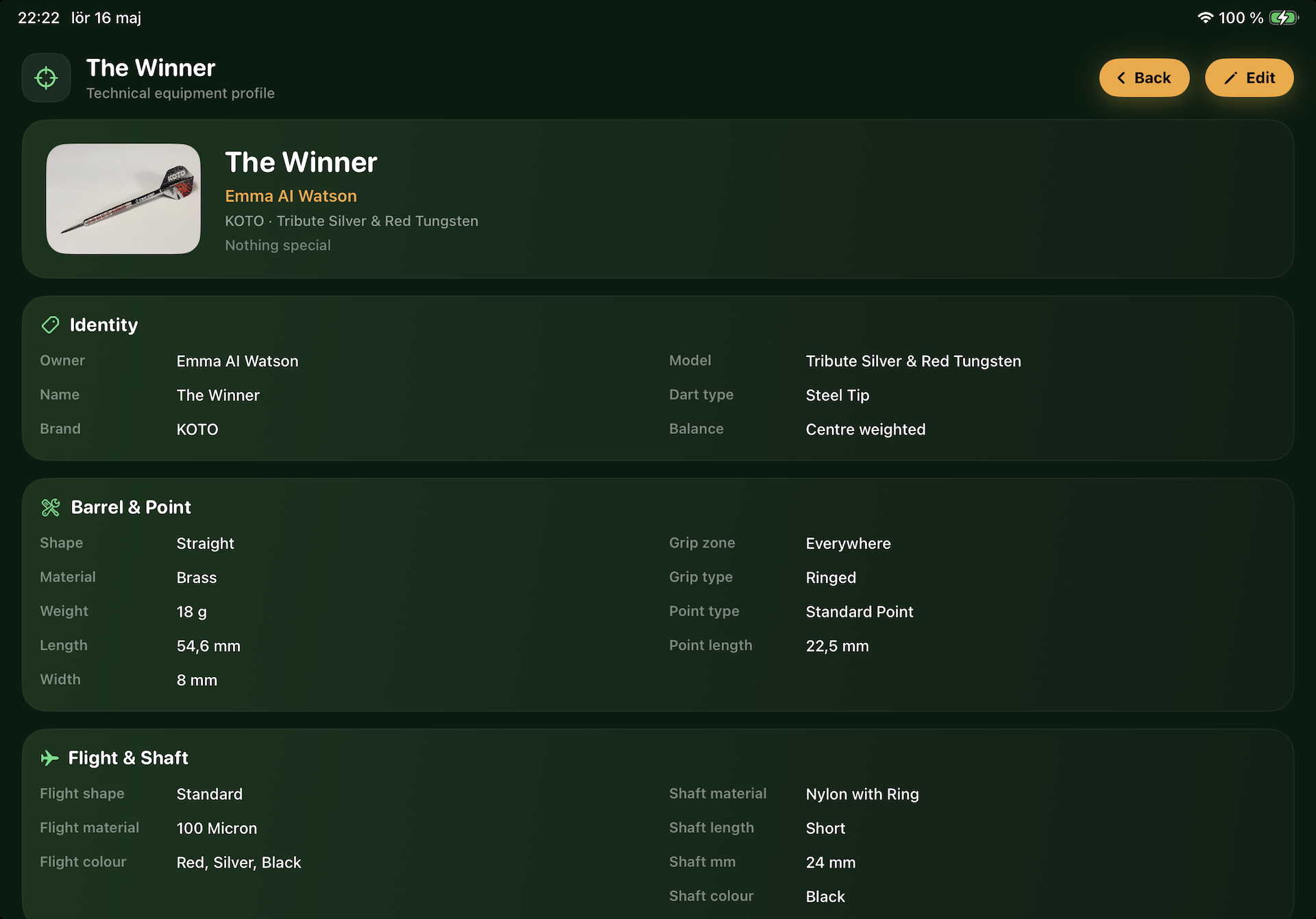
Tap Dart Sets to manage your equipment. Each card shows the set’s name, brand, model, weight and a small image if you’ve added one. Filter chips at the top toggle between Active and Archived sets. The plus button lets you add a new set.
Sets are tied to a single owner player — when you create one you pick which player it belongs to. They show up in that player’s session-setup screen as a default option, but the app supports cross-player borrowing too: any participant in a session can pick anyone’s active set.
Dart Set editor
The dart-set form gathers the technical details for each set you own. Cards include:
- Owner — which player the set belongs to. Defaulted to the player you started the flow from (e.g. tapping Add Set on a specific player’s profile pre-selects them, or opening Add dart set from the Dart Sets hub starts on the first active player). The owner picker only appears when more than one active player exists, and only in create mode — for an existing set, ownership transfers go through the dedicated Move-existing flow described below.
- Name + dart type (steel tip / soft tip).
- Barrel — weight in grams, shape, balance, grip type.
- Flight — shape, brand, custom tags.
- Tags — free-form text labels for grouping (e.g. ”comp”, ”warmup”)
- Notes — anything you want to remember about the set.
- Photo — drop in an image of the darts so the cards look great.
None of the technical fields are required — you can save a set with just a name. Filling them in unlocks the Dart Performance comparison view’s ”chip” labels (e.g. ”24g · Centre weighted · Steel Tip”).
Names are unique per owner: two players can both have a set called ”Bolide 05” but the same player can’t have two. The form validates as you type and disables Save while the name collides.
⚠️ Archive a set instead of deleting it when you stop using it. Archived sets remain attached to every session and match they participated in, so your history stays intact and the Dart Performance view can still look back at how they played.
Moving a set between players
If a set was created under the wrong player, or you’ve physically handed your darts to someone else and want their stats to take over going forward, use Move existing instead of recreating the set. From the new owner’s profile open the Dart Sets card — when there are sets owned by other players a ”Move existing” entry appears next to Add Set. Pick the set, confirm the move and it’s reassigned in place. All historical sessions and matches stay attached to the set, so the dart-set’s accumulated history follows it to the new owner without being rewritten.
Preferences sub-screen
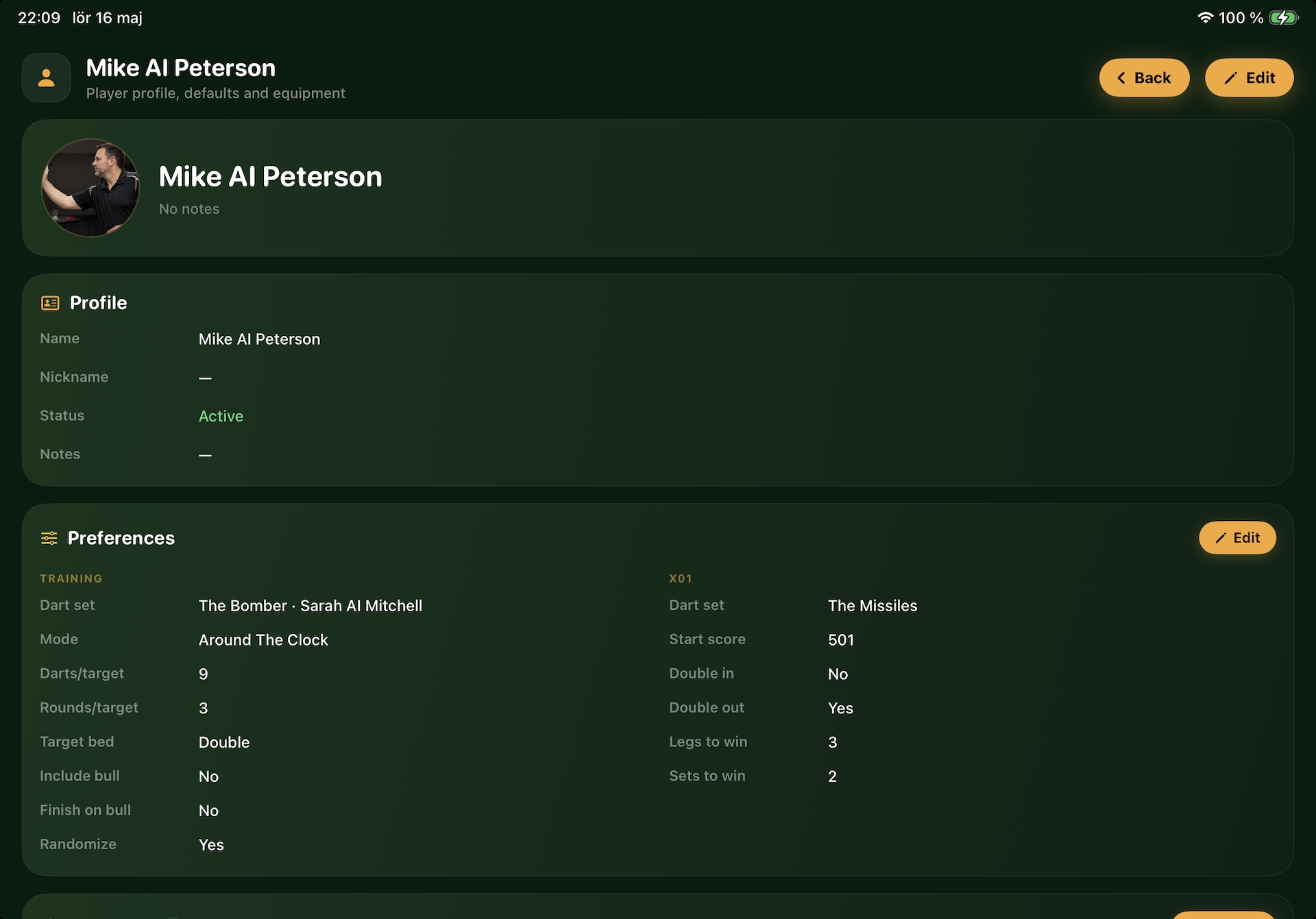
Per-player defaults that the Start Training and Start X01 screens load automatically when you pick that player as Owner. Tap the Preferences card and pick a player to edit. Common defaults include:
- Default dart set for training and for X01.
- Default training mode preferences (darts per target, rounds per target, include bull, etc.).
- Default X01 variant, checkout rule and legs / sets to win.
Anything you don’t customise falls back to the app’s defaults. The Preferences card on the hub tells you how many players have customised their preferences vs how many are running on defaults.
Archive sub-screen
Archive is the read-only graveyard. It lists inactive players and archived dart sets. From here you can:
- Tap any row to view its details.
- Restore — bring an inactive player back to active, or an archived dart set back to active. They reappear in session-setup pickers.
- Permanently delete — only available when the player or set has no recorded history. This is a hard delete and can’t be undone, so the option is hidden whenever there’s data attached.
Active vs archived — what’s the difference?
Both states preserve every record the player or set was ever attached to — sessions, matches, throws, badges. The only difference is whether they appear in pickers when starting a new session. Treat archive as a hide-from-view, not a delete.
Common starter flow
- Open Profiles → Players → tap + → enter your name (and optional nickname) → Save.
- Back to Profiles → Dart Sets → tap + → enter a set name (and optionally weight, brand, etc.) → Save.
- Back to Profiles → Preferences → pick the player → set your default dart set and any X01 / training preferences → Save.
- Now you’re ready to start sessions — your defaults flow through automatically.
Performance
The hub loads counts on demand, so opening it is essentially instant. Saving a player or dart set takes a few milliseconds — there’s no syncing or remote service involved.